Tuesday, October 14, 2008

Maurice Coleman aka Baldgeekinmd : Your October (and November) Learning 2.1 Guide

Hi everyone, I am Maurice Coleman and I will be your guide for October 2008. I hope this fall finds you well and ready for more Learning 2.1 activities. You can find me on many social networking sites as user baldgeekinmd *and one or two as just baldgeek.*

These are my usual social networking avatars:


My Shortish Biography:
I am currently the Technical Trainer at Harford County (MD) Public Library located in the North Eastern corner of Maryland. My job is to help staff leverage new and existing tools and technologies in an innovative library system; to provide group and individual training in a variety of areas to library staff; and to foster communication between geeks and non-geeks. Over the last 15 years I have trained people of all ages on technology in the real world, software, organizational development, fundraising, community organizing and presentation skills.

I have presented at National, State and City/County wide conferences on technology and community development issues. I am currently co-creating and producing the Learning 2.1 program for the state of Maryland; organizing/hosting a podcast about training called T is for Training and I actively blogs at The Chronicles of the (almost) Bald Technology Trainer. I am also working with Minnesota Regional Libraries to do a series of technology training workshops all across Minnesota this month (October 2008. ) I have also been selected by the Maryland’s DLDS (State Library) to represent library staff development professionals at the esteemed Learning 2008 conference sponsored by the Maise Institute.

I hope you have fun with the things I am going to show you this month.

See you soon with Thing #66. I still can't believe that there are now that many things.

Tuesday, September 30, 2008

Thing 65: It's hard to think about anything else

Markets Open A Day After Losing 9 Percent In Single Day
The current economic crisis in the U.S. market dominates the news right now, justifiably. There's lots of detailed information (from the pink Financial Times, for example), but I'm having trouble finding something I can understand without spending a lifetime studying it, and I'm sure some of our library users are just as hungry for digestible information. 

So I've spent this afternoon searching for good resources to help us figure it out, free of political bias (I hope). I'm not sure I've found the magic link yet, but here are some suggestions.
Discovery Exercise:
  1. Visit these sites to see what you can learn. I sincerely hope it helps!
  2. If you find other useful sources, please share them with the rest of us via your blog or by posting them to the comments.

Kitten Basket

There, now do we all feel a little better after our cute break?

Tuesday, September 9, 2008

Thing 64: One-hit wonders

Vintage image of students in classroom
It's September, so we're back in our places with bright, shining faces, right? Or maybe we're just exhausted after a long, hot summer. Well, those of us in North America, anyway.

I always liked it best when the first few days of school were easy days - no homework, not too much to wrap my head around, just basic stuff I'd rely on all year. In that spirit, here's a list of websites I discovered to be really useful this summer. I hope you'll find one or two of them helpful.

Site: CopyPasteCharacter.com
Why it's so great: You never knew how much you needed this. Say you're writing about the Norwegian city Amoy. Except that's not really the name ... how do I make that A with the single dot again, much less the o with the slash? Find the character you need at CopyPasteCharacter.com, and, well, copy and paste it. (It's Åmøy, BTW.)

Site: Kuku Klok
Why it's so great: It's an online alarm clock that promises to work even if your internet connection goes down. Set the clock (using military time), click "Set," and choose from one of 4 alarm sounds. Done. The alarm will go off until you flip back to that page and make it stop.

Why it's so great: Tracks Atlantic tropical storms and hurricanes and their projected tracks, a virtual obsession in the PLCMC part of the world this time of year. Clear graphic interface, but loads quickly.

Site: Pixadus
Why it's so great: Social-ranking for pictures. Post a photo; other users rank it, and the ones given the best ranking show up on the front page. The top pictures are usually astounding.

Why it's so great: There's lots of times you need a fake ID on the internet, when you think about it. Maybe it's the thirteenth time you've signed up for a Yahoo! email account because they keep changing the process and you need to be able to explain the new way to patrons. Maybe you just want to hide your real self. No matter what your reason, Fake Name Generator sets you up with a fake name, complete with details like postal address, mother's maiden name, a disposable email address, and so forth, from pretty much any country you'd like. (I'm Rebecca W. Hewitt of Heronsgate, born in 1961, BTW.)

Site: PicApp
Why it's so great: Search for photos (artsy or news-related) to use in your blog posts, all perfectly legal. You can create an account, but there's no need to unless you want to create a lightbox to save your favorites into. (PicApp is the source of the vintage classroom photo above and the picture of Steve Jobs introducing the new iPod Nano below, which I'm posting only a few hours after the photograph was actually taken.)


Apple Introduces New Products

Discovery Exercise
  1. Visit each of the sites listed in this post. Which ones will be useful for you?
  2. Use the comments section of this blog to share your newly-discovered useful sites.
  3. Use Regator (this might be a good place to start) or any other news reader to find one or two more potentially useful websites. Visit and evaluate them in your blog. (It's okay if you decide they aren't worth it; just let us know why.)

Friday, August 1, 2008

Summer vacation

Okay, so consider the lack of July postings a nice summer break - or winter break if you're in the Southern Hemisphere, I suppose. While we're at it, let's take August off too! But watch out, because I'm busy collecting all kinds of goodies for you to enjoy learning about come September.

In the meantime, go get back to your roots and read a book! (Preferably on a beach somewhere.)

Monday, June 30, 2008

Thing 63: PDF Form-Topia: PDF Form Filler Freeware


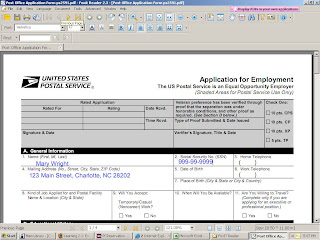
FoxIT Reader is a wonderful free tool to add to your PDF arsenal. Click the Play button to view a video that introduces you to FoxIT Reader and describes its wonderful features. We especially love the feature that enables us to type text in a non-editable form.


I downloaded and installed it to my flash drive so that I would not leave home without it! Would you like to have your very own copy? Log onto: http://www.foxitsoftware.com/pdf/rd_intro.php

Click the DOWNLOADS link. Click Download Foxit Reader 2.3 (Installer: .exe, 2.55 MB). Click the RUN button to run the insatallation program from the FoxIt Software website. Or click the SAVE button to save the file to your computer, and run the installation program from your computer. I chose to run the installation program from the Fox It Software website. The installation process was quick and easy!

Then I opened the Post office application file I saved during THING 62. To recap: Log onto http://www.usps.com/. Click Forms. Click Employment Forms. Click PS Form 2591(PDF).

Click Tools; Typewriter Tools; Typewriter. Click in the text box you want fill in and begin to type. If the cursor doesn't land exactly where you want it to, you can click the Move cross, and drag the text box to wherever you want to place it. Then you can type to your heart's content. It is so easy!

There is one caveat, however. If you save the completed form FoxIt Reader adds a red evaluation mark to the completed form. If you buy the FoxIt Reader Pro Pack for $39.00, you can save a completed form without an evaluation mark.

You can PRINT the form without having evaluation marks added. That's what I did. It works beautifully!

I'm so glad we've had this time together. Until next time, Happy Computing!


-Mary

Wednesday, June 18, 2008

Thing 62: PDF Form-Topia: PDFEscape.com


Have you ever tried to fill out a non-editable PDF form? Frustrating, isn't it. Especially if the PDF form is an employment application and you've waited until the last day to submit it. Of course, YOU would never do such a thing. ;>) This post is to provide you with some tools you can use to fill in a non-editable form.

Let's say you've decided to work at the post office. Although you can now search and apply for post office positions online, you decide that you prefer to do it the old-fashioned way - with a paper application form. Log onto http://www.usps.com/. Click Forms. Click Employment Forms. Click PS Form 2591(PDF). In the Name box, type your first name. What's the matter? Allow me to introduce you to what is known as a non-editable PDF Form. In order to complete this form, you will have to print it, and write it out by hand or typewriter. If you can find a typewriter, that is. It's no secret that human resource types prefer not to have to decipher a job applicant's handwriting. What are the odds that your handwritten application will be read by a human? Especially if you have poor handwriting? What's a job applicant to do?

The following website offers a solution to this problem.

PDFescape.com is a free online pdf reader, editor, form filler and designer. You can open and edit pdf files from a URL or saved to a disk. The great thing about this site is that it will let you use it without registering first. Or is it great? More about that later.

To test it, I chose the Unregistered User option and opened Form 2591 from the website: http://www.usps.com/forms/_pdf/ps2591.pdf. I clicked on the Form Field tool; created the text box; moved the text box to the Name field on the form; doubled-clicked on the text box; and typed my name.


I found it simple to use, and easy to navigate. The text box reponded effortlessly to my resizing it to fit the Name field. It was so easy, and I was having so much fun, I decided to fill in a few more fields. There is even a check mark tool which makes it easy to check boxes on the application. Wow!


When I tried to save the form as a pdf file, a message box appeared informing me that a small logo and link for PDFescape would be added to the free PDF created. If I wanted to avoid having the logo and link added I would have to pay for one premium credit. Premium credits are sold on the website at $4.99 for 5 credits; $8.99 for 10 credits; $16.99 for 20 credits; $29.99 for 50 credits; and $49.99 for 100 credits.

So I thought to myself, maybe I should save it and see how it looks. When I opened the saved file, the following was emblazoned across the top of the form:


"This file was created, modified, or form filled with PDFescape. This marking will not be placed on files saved using the premium option in PDFescape."

Also, the following was emblazoned across the bottom of the form:


" PDFescape is an online web service that enables its users to create, open, edit, and fill in PDF form files. The basic service is free, however this small tag is added to files which use the service free of charge. This marking will not be placed on files saved using the premium option. For more information see www.pdfescape.com"


Then I thought to myself, maybe I should just print it out. When I tried to print it, I was informed that a small logo and link for PDFescape would be added to the free PDF printed. If I wanted to avoid having the logo and link added I would have to pay for one premium credit.


So I dedcided to just print it and see how egregious the logo and link looked on hard copy. Across the top of the form the following was printed in large letters: "Printed Using PDFescape (www.pdfescape.com)". Across the bottom was printed the full URL for the document. The addition of the logo and url on the printed application made the application unsuitable for submission to a prospective employer.

Bright idea! Why not become a Registered User and then fill out the PDF form? Suffice it to say: Registration has its privileges. When you register with PDFescape.com, you receive 2 premium credits as a welcome gift. So armed with a precious premium credit, I was able to save and print my completed form with no logos, tags or PDFescape messages. Success was mine, and can be yours, too if you save yourself some time and just register at the outset.

If you've enjoyed this post, take a look at the next chapter of Thing 63: PDF Form-Topia: PDF Form Filler Freeware. (What a tongue twister! I betcha can't say that three times fast!)

-Mary

Thursday, June 5, 2008

Your June learning guide ...

is one of the most enthusiastic technology trainers that I know. Mary Wright, who works with me in Virtual Village, actively recruits people for her classes and has 'em eating out of her hands once they're there. Even people who don't take her classes ask for her by name. Bottom line, Mary knows her stuff, and I'm sure she has some wonderful, useful things to share with us this month.

-- Jamie